BranchBox for Mac
BranchBox for Mac puts your projects and feature worktrees in one native window. Start a feature, review its environment, open your editor or coding agent, and tear it down when you are finished.
The app uses your installed branchbox CLI. Its project and feature data comes from the same repositories and registry that the CLI uses; it does not require the BranchBox agent daemon or a cloud account.
The Mac app currently ships as a development/CI build. It requires macOS 26 or later and BranchBox CLI 0.13.4 or later. See installation for building or obtaining an app bundle and opening it on macOS.
Walkthrough
This silent 24-second recording shows real CLI operations in a disposable project: Full feature setup and its result, followed by Python completing with Exit 0 in the devcontainer. The devcontainer was started separately between the two recorded clips. Captured using a development app build.
The six screenshots below come from real sessions in a disposable project. The Overview image uses the updated main-window layout; the other five images and walkthrough were captured with an earlier development build.
Add a project
- Choose File › Add Project… (⌘O), then choose a Git repository or drop its folder into the sheet.
- If BranchBox is already set up, choose Show Project. Choosing a feature worktree resolves to its main project, so you do not need to add each feature separately.
- For a new repository, choose Set Up BranchBox…. Review the detected stack, devcontainer and environment options, then use Preview to inspect the CLI's dry run before initializing.
Setup keeps the repository in place by default and leaves tunnels off. Moving the repository into a parent layout is an explicit option that requires a successful preview of those exact settings first.
The project view lists its features and counts active features and items needing attention. Use the sidebar filter or Quick Open (⌘K) to find a project or feature. Remove from Sidebar removes the app's saved reference; it does not delete the repository or worktrees. If a folder moves, use the project's Locate action.
Start a feature
Choose Start Feature… (⌘N) from a project or use the toolbar.
| Choice | What it controls |
|---|---|
| Name | The feature slug, branch, and worktree folder are shown before starting. Use Edit Name to override the generated slug. |
| Start from | Current HEAD or another local/remote branch. |
| Runtime | The isolation provider. Availability depends on the CLI and tools installed on this machine. |
| Full / Quick | Full runs the configured setup modules. Quick uses CLI minimal mode, which skips devcontainer sync, Compose isolation, and specs by default. Other configured modules or enforced policies can still run. |
| Prompt | Optional instructions saved for the feature's coding agent. |
| Advanced options | Module choices and other CLI-supported start options. |
Copy as Command gives you the equivalent CLI invocation. A name collision is shown before starting. Mutations for a project are queued when another operation is already changing that project.
For a Quick feature that needs current devcontainer configuration later, use Update All Workspaces…. See Minimal Mode for module and tunnel choices.
The sheet shows progress and the result. Run in Background closes it while the operation continues in Activity. Stop… cancels the running process; an interrupted start may leave a partial feature that needs review or recovery.
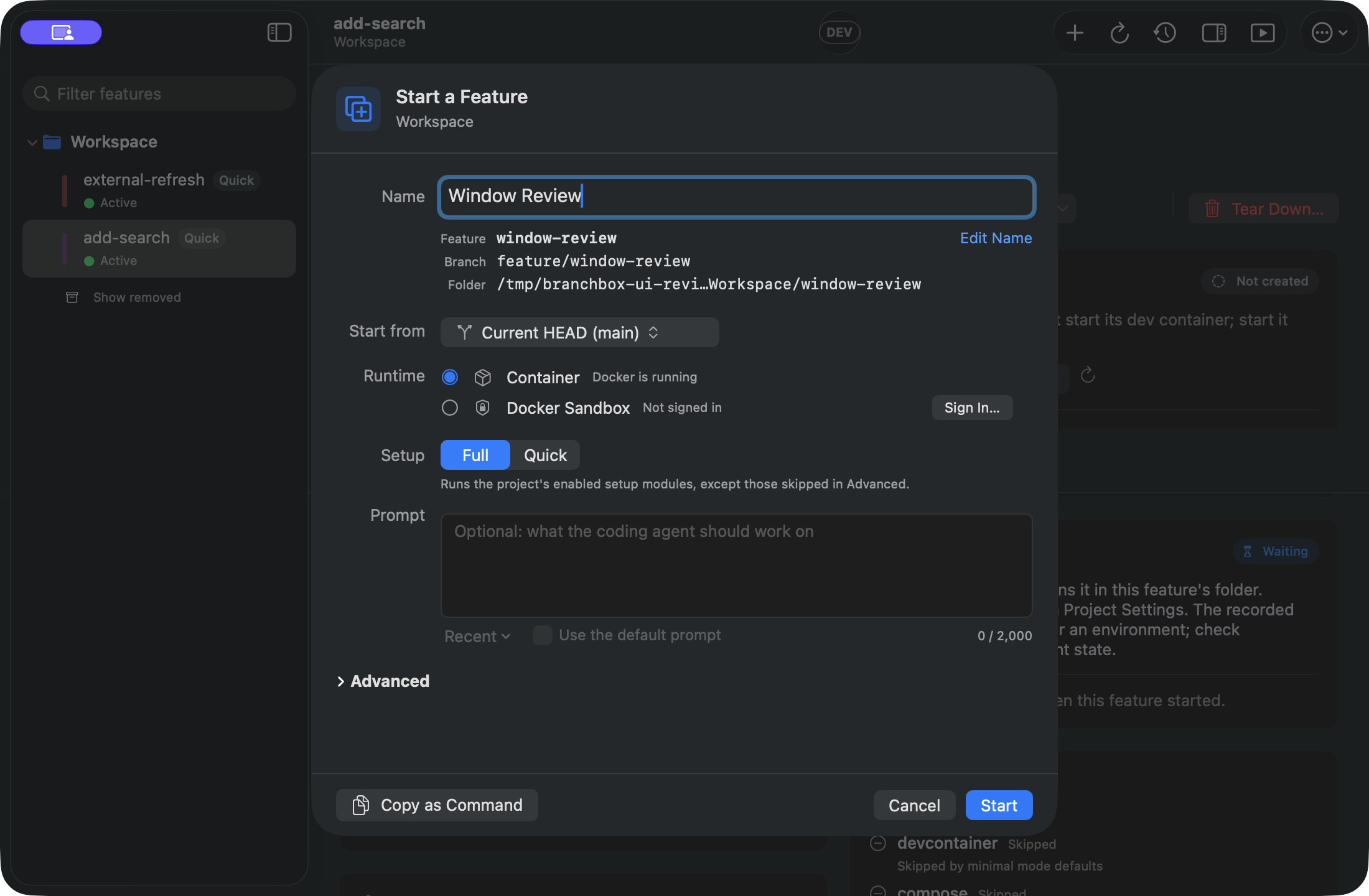
For the container runtime, a Full feature prepares its workspace and configured devcontainer setup. Quick mode skips that sync by default. Start the devcontainer separately from the feature's Environment card when you need it.
Work in a feature
The feature detail brings together the worktree and branch, detected stack, environment, module results, prompt, pull request information when recorded, and available URLs.
The displayed branch and Recorded commit come from the feature registry. The recorded commit may differ from the worktree's current HEAD; the app does not probe Git for the latest commit.
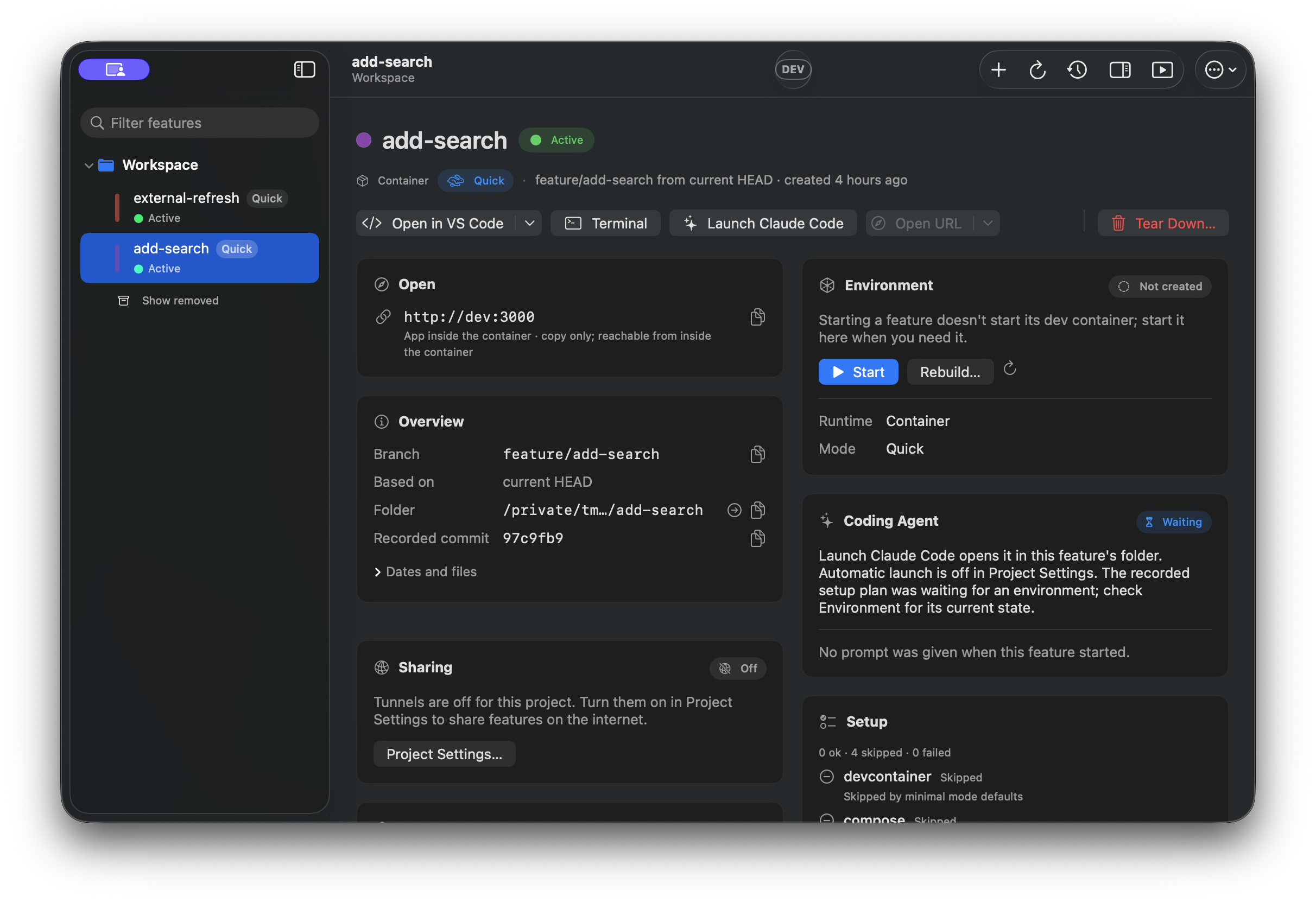
Module success reports completion of that setup step. For example, the database module configures a database name in an existing .env; it does not create, migrate, or seed the database. Start the services and run your project's database setup before treating the application as ready.
Use Open in Editor, Open in Terminal, Launch Agent, Reveal in Finder, or the copy actions from the toolbar or Feature menu. Configure VS Code, Cursor, another editor, Terminal, iTerm, or a custom terminal command in Settings › Editors & Terminal. Opening directly in a devcontainer is supported for VS Code/Cursor on the container runtime.
Settings › Coding Agent chooses Claude Code, Codex, or a custom command and whether to pass the feature's prompt. A project's agent setting takes precedence over the app-wide choice. Launching an editor or agent requires that tool to be installed and configured.
Environment controls
| Runtime | What the app shows and controls |
|---|---|
| Container | Queries devcontainer state; offers Start, Stop, Rebuild…, and Open Shell when applicable. Stop keeps volumes unless you explicitly choose Stop and Delete Volumes…. |
| Docker Sandbox (SBX) | Shows state recorded in the feature registry and offers Start Environment when a recovery is available. Stop and Rebuild are not implemented in the app yet. |
| Local VM / managed in-guest / other providers | Shows the registry's recorded runtime information. Environment lifecycle controls are managed outside the Mac app. |
An Active feature means its feature registry entry is active. It does not by itself prove that a devcontainer or application server is running. For non-container runtimes, the displayed environment state is registry information rather than a live runtime probe.
When the CLI supplies the active devcontainer configuration, Open Shell uses its configured user and workspace. If no user is configured, Docker uses the container's default user. The shell opens Bash when available, otherwise sh. Older CLIs can supply estimated user information instead.
In current CLI source builds, Stop keeps volumes. Stop and Delete Volumes… removes attached anonymous volumes for standalone containers and owned Compose volumes for Compose environments. It does not infer or delete named/shared standalone volumes. Compose Stop retains cleanup information in the workspace so a later explicit volume cleanup can find the same project after its containers are gone.
Run a command
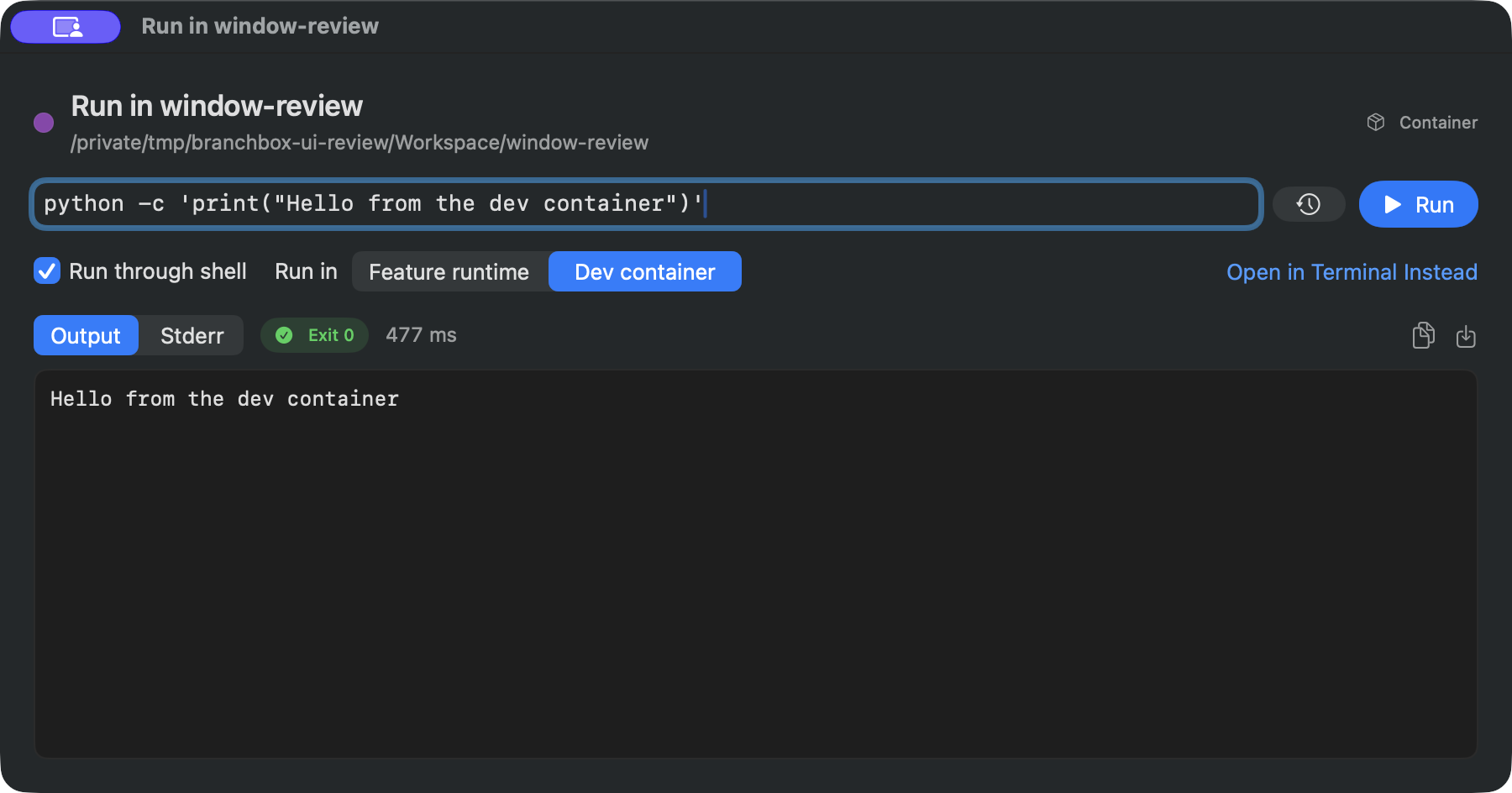
Choose Feature › Run Command… (⌥⌘R). The command runs in the feature's recorded runtime; a running devcontainer on the container runtime also enables the Dev container target.
- Run through shell uses
/bin/sh -lc, so pipes, globs, and shell operators work. Turn it off to run parsed arguments directly. - Output appears after the command finishes, with stdout, stderr, exit code, and duration. A nonzero command exit is shown with its output, so you can inspect the failure. Use Open in Terminal Instead when you need live output or an interactive command.
- Stop interrupts the command and its child processes. Interrupted commands may not return output; any output already captured remains available.
- Save common commands as project Quick Commands or reuse the feature's recent command history.
Share a feature
The Sharing card shows a tunnel's recorded provider, address, target, and any setup instructions. Enable and configure tunnels in Project Settings before using Share via Tunnel. A pending or manual tunnel may require additional steps shown in the card; a recorded address alone is not a connectivity check.
Stop Sharing… removes the tunnel after confirmation. Cloudflare credentials are handed to the CLI on standard input, rather than as a command-line argument.
Review changes before teardown
Choose Feature › Tear Down… (⌘⌫). The sheet first shows the teardown plan: uncommitted changes, BranchBox-generated files, preserved files, and the branch's merge state.
The initial teardown attempt checks the reported Git changes before removing the workspace. If a safety check refuses it, the result explains what blocked it and offers the applicable next step. Discarding user changes and force-deleting an unmerged branch require explicit choices. An unmerged branch selects Keep automatically; choosing safe deletion does not permit deleting its unmerged commits. Keep the branch when you want to remove the workspace but retain its commits.
The current plan does not list Git-ignored files. Worktree removal also deletes those files, so copy any ignored local data you need before teardown. Select Safe uses the reported Git status and branch checks; it is not a backup. Keep retains the branch's commits, but does not preserve ignored files or Compose volumes.
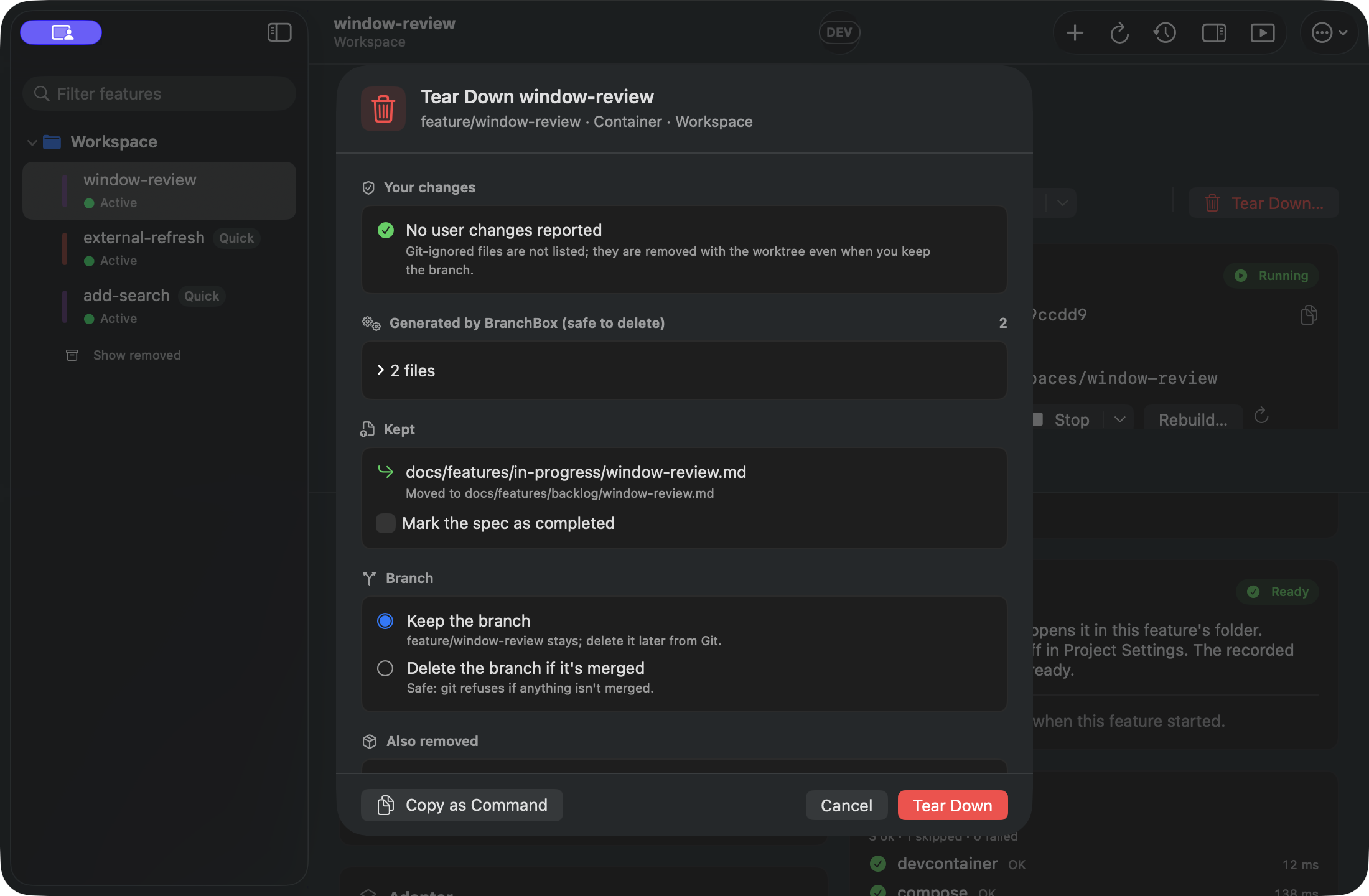
In the current CLI source build, feature teardown targets devcontainers with the worktree's exact workspace label, including standalone image/Dockerfile containers. The Compose module separately removes owned Compose containers, networks, and volumes. The standalone container check does not remove volumes or custom networks. This differs from Stop in the Environment card, which keeps volumes unless you explicitly choose to delete them.
Review the result's runtime cleanup status and warnings. Failed or unverified cleanup of a possibly provisioned environment keeps the worktree for retry unless removal is forced. Compose cleanup retains project identity before removing containers, so a retry can still find remaining networks or volumes. Keep the retained workspace and its managed configuration for that retry. Missing or changed Compose configuration can require restoration or manual inspection; it does not produce a clean receipt. The newer cleanup behavior is identified by the CLI's host-container-teardown-verified capability in Diagnostics. Older CLI builds can leave standalone devcontainers behind after feature teardown; use Stop first and check Docker separately when using those builds.
New managed Compose identity is bound to the canonical workspace. Older managed env files need matching recorded feature/worktree identity or exact workspace-label evidence or valid cleanup history. A copied project name alone does not authorize cleanup. Mismatched or ambiguous identity stops teardown and keeps the worktree unless removal is forced; restore the owning feature's configuration and review its Docker resources before retrying.
Keep cleanup history when the running Compose project uses a different name from the recorded managed project. Once its containers are gone, deleting that history can leave its networks or volumes undiscoverable; the cleanup receipt covers the owned projects whose identities were established.
Project › Prune… reviews multiple features and tears them down sequentially. Select Safe excludes reported user changes, invalid worktrees, and unsafe branch deletion under the chosen policy. An unmerged branch can remain selected when its policy is Keep. A refused teardown is recorded and the batch continues with the remaining features. The app uses individual teardowns rather than running branchbox prune.
Removed features can be included with View › Show Removed (⇧⌘.). Items such as a missing folder, degraded runtime, interrupted setup, or unregistered worktree appear as needing attention. Use the offered recovery, or Review Worktree… for an unregistered folder, instead of assuming a failed operation cleaned up everything.
A feature with missing or stale .git metadata also needs attention. You can still inspect its folder or open it in an editor, but setup, command execution, and teardown stay blocked until its worktree metadata is repaired. Workspace updates can still be previewed; applying an update is blocked when an affected active workspace has invalid Git metadata.
Project settings and workspace updates
Project › Settings… reads the effective project configuration. With a CLI that reports the corresponding capabilities, it lets you change feature defaults, runtime, teardown behavior, coding agent, and sharing settings. Saving configuration runs a dry run first and shows the changes for review.
After changing the main project's devcontainer configuration, choose Project › Update All Workspaces…. Select Copy or Link, use Preview, then Update Workspaces. Each active feature gets its own result, including skips and failures. This copies or links configuration; it does not rebuild running containers automatically.
Activity, menu bar, and refresh
Window › Activity (⌥⌘L) lists queued, running, and finished operations with their logs. The main window's inspector (⌥⌘I) shows the selected operation and its progress.
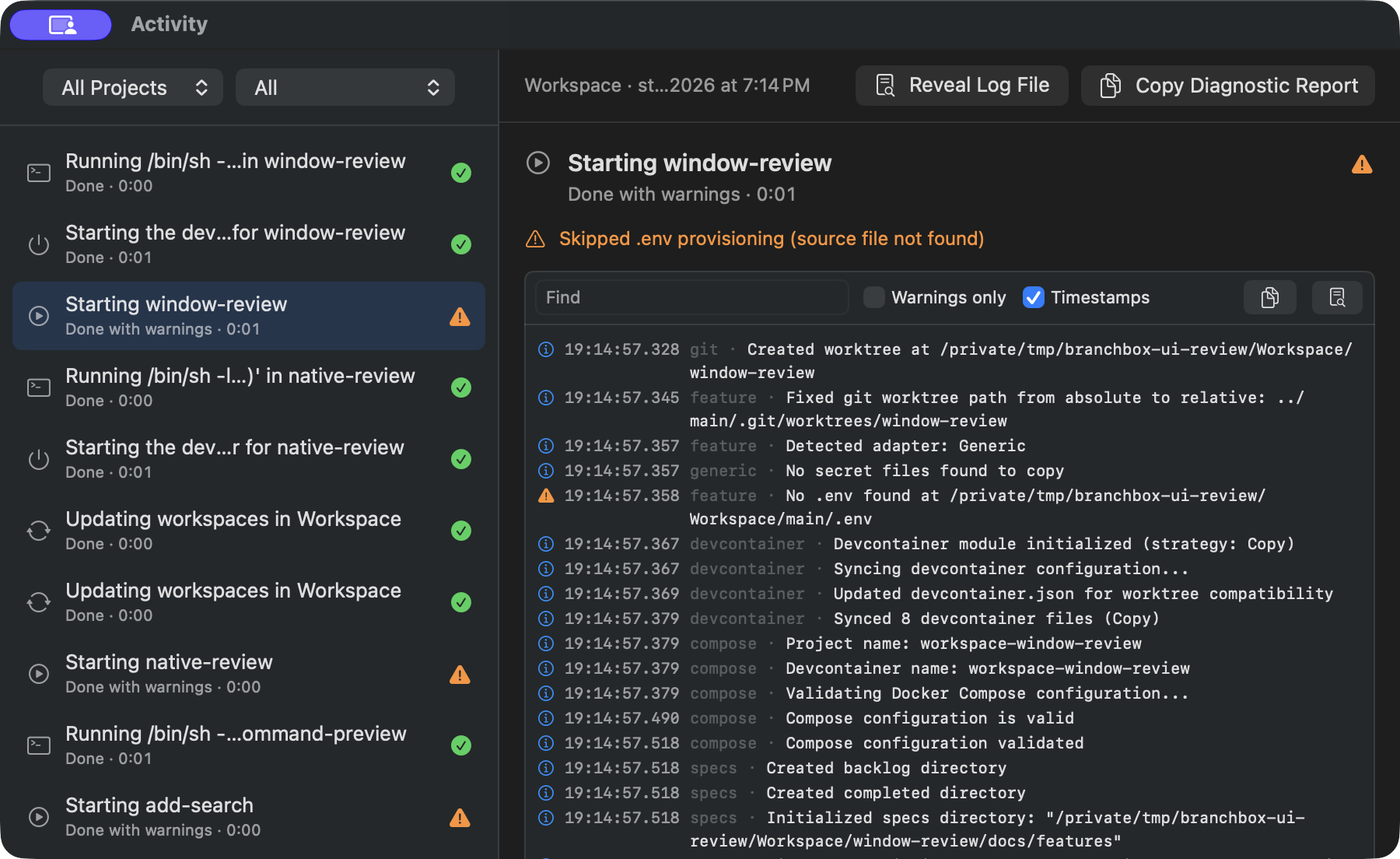
The menu bar icon indicates idle, working, attention, or CLI-unavailable state. Its menu opens projects and features, starts a feature, refreshes, and shows recent activity. Closing the main window can leave BranchBox running in the menu bar. Quitting with an operation running offers Keep Running or Cancel and Quit.
In Settings › Refresh, choose separate polling intervals for the viewed project and other projects, and enable Watch project files for prompt refreshes after CLI changes. The app also refreshes when it becomes active, after operations, and with ⌘R. Refresh timing depends on those settings and the CLI response; the app does not continuously stream runtime health.
Notifications are configurable in Settings. They report qualifying completed or failed operations when the main window is not in front and can open the result. macOS notification permission and a packaged app are required; notifications are disabled under swift run.
CLI compatibility and diagnostics
The app selects the first executable CLI candidate from:
BRANCHBOX_CLI_PATH.- Settings › Tools › Locate….
- Your captured login shell's
PATH. - Standard Homebrew, Cargo, and local install locations.
- An embedded CLI, if the app was explicitly packaged with one.
Use Window › Diagnostics to see the selected executable, version, capability list, login-shell environment, tool checks, project health, and recent operations. Run Checks Again refreshes checks; Copy Report produces a report with known secrets redacted. Review paths and command output before sharing a report publicly.
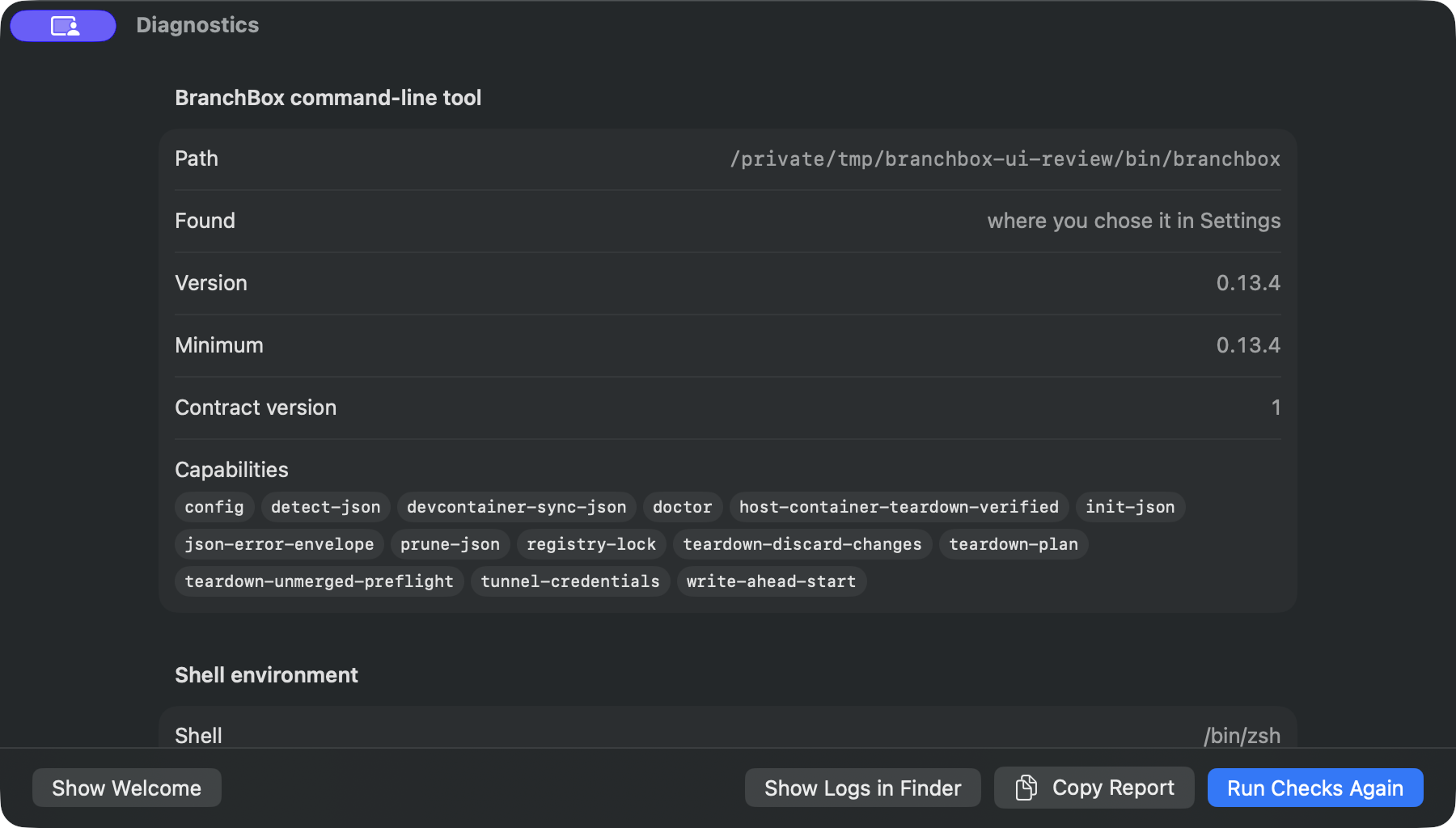
The released CLI 0.13.4 uses legacy mode. A development build can report that same version while advertising newer capabilities, so the version number alone does not determine available actions. Core feature workflows have compatibility fallbacks, including app-side teardown checks and host-tool diagnostics. Project configuration editing, tunnel credential editing, and some newer setup options require specific CLI capabilities. An executable that responds to version --json does not automatically support every action: the app checks its advertised capabilities individually.
If the app and Terminal find different tools, choose the CLI with Locate… or use Re-capture after changing your shell profile. Check Again redetects it without relaunching. A missing Docker engine blocks container operations; it does not mean the project or feature registry has disappeared.
Local data and development previews
The installed app keeps project references in ~/Library/Application Support/BranchBox/projects.json, preferences in the dev.branchbox.app defaults domain, and operation logs under ~/Library/Logs/BranchBox/. Development builds use separate BranchBox Dev storage and defaults.
Debug builds can use a PreviewBackend with sample projects and scripted results. Those screens are useful for design and documentation but do not run the CLI, create real worktrees, start containers, or prove connectivity. Diagnostics labels the preview backend as sample data.
For development commands, packaging, and automated test layers, see the Mac app README and testing guide. For command payloads, see the JSON contract.